Following the onboarding guide?
Return to Get Started with Recce Cloud after completing this page.
Setup CI - Auto-Validate PRs
Manual data validation before merging is error-prone and slows down PR reviews. This guide shows you how to set up continuous integration (CI) that automatically validates data changes in every pull request (PR).
After completing this guide, your CI workflow validates every PR against your production baseline, with results appearing in Recce Cloud.
What This Does
Automated PR Validation prevents data regressions before merge:
- Triggers: PR opened or updated against main
- Action: Auto-update Recce session for validation
- Benefit: Automated data validation and comparison visible in your PR
Prerequisites
Before setting up CI, ensure you have:
- Cloud account - Start free trial
- Repository connected to Cloud - Connect Git Provider
- dbt artifacts - Know how to generate
manifest.jsonandcatalog.jsonfrom your dbt project - CD configured - Setup CD to establish baseline for comparisons
- Environment configured - Environment Setup with
citarget for per-PR schemas
Environment strategy
This workflow uses per-PR schemas with the ci target as the current environment. Each PR gets an isolated schema (e.g., pr_123) that compares against the base artifacts from CD.
See Environment Setup for profiles.yml configuration and why per-PR schemas are recommended.
Setup
GitHub Actions
Create .github/workflows/pr-workflow.yml:
Key points:
- Creates a per-PR schema (
PR_123,PR_456, etc.) using the dynamicSNOWFLAKE_SCHEMAenvironment variable to isolate each PR's data dbt buildanddbt docs generatecreate the required artifacts (manifest.jsonandcatalog.json)recce-cloud upload(without--type) auto-detects this is a PR sessionGITHUB_TOKENauthenticates with Cloud
GitLab CI/CD
Add to your .gitlab-ci.yml:
Key points:
- Authentication is automatic via
CI_JOB_TOKEN recce-cloud upload(without--type) auto-detects this is an MR sessiondbt docs generatecreates the requiredmanifest.jsonandcatalog.json
Platform Comparison
| Aspect | GitHub Actions | GitLab CI/CD |
|---|---|---|
| Config file | .github/workflows/pr-workflow.yml |
.gitlab-ci.yml |
| Trigger | on: pull_request: |
if: $CI_PIPELINE_SOURCE == "merge_request_event" |
| Authentication | Explicit (GITHUB_TOKEN) |
Automatic (CI_JOB_TOKEN) |
| Session type | Auto-detected from PR context | Auto-detected from MR context |
| Artifact passing | Not needed (single job) | Use artifacts: + dependencies: |
Verification
Test with a PR
GitHub:
- Create a test PR with small data changes
- Check Actions tab for CI workflow execution
- Verify validation runs successfully
GitLab:
- Create a test MR with small data changes
- Check CI/CD → Pipelines for workflow execution
- Verify validation runs successfully
Verify Success
Look for these indicators:
- Workflow/Pipeline completes without errors
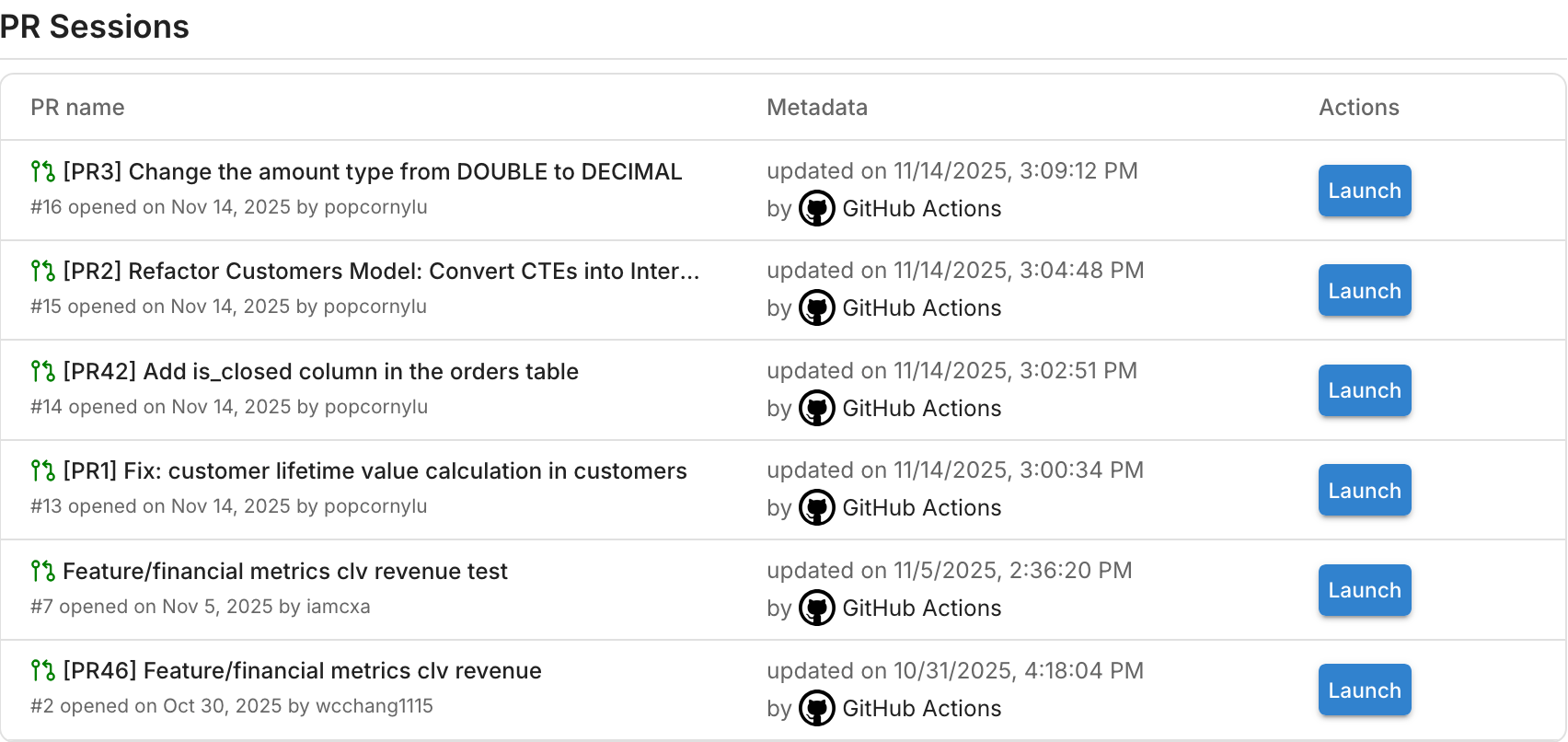
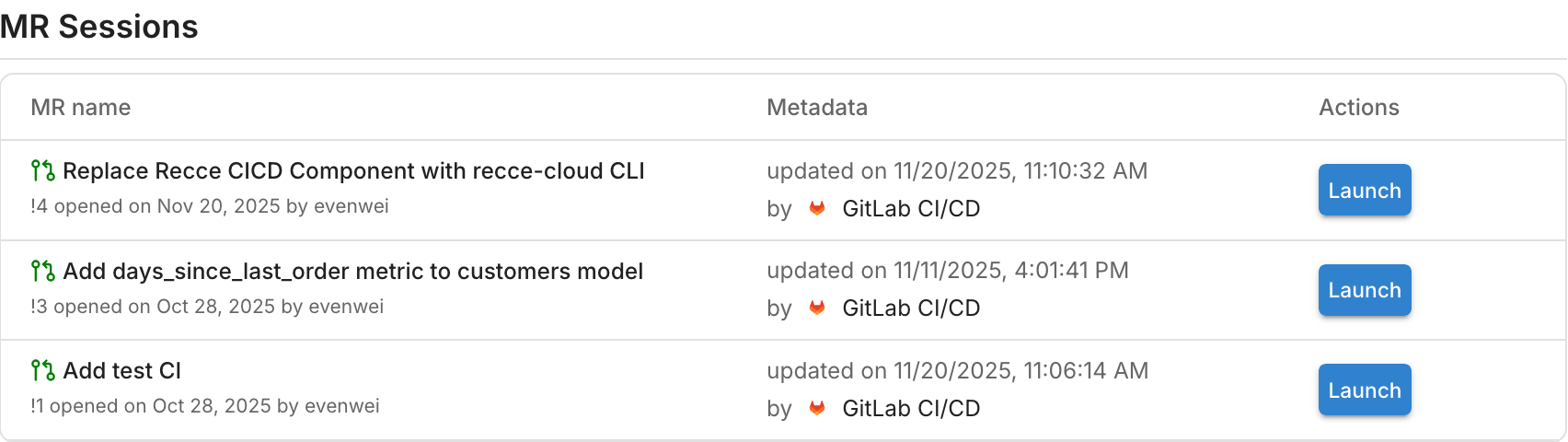
- PR session created in Cloud
- Session URL appears in workflow/pipeline output
GitHub:
GitLab:
Expected Output
When the upload succeeds, you'll see output like this in your workflow logs:
GitHub:
─────────────────────────── CI Environment Detection ───────────────────────────
Platform: github-actions
PR Number: 42
PR URL: https://github.com/your-org/your-repo/pull/42
Session Type: cr
Commit SHA: abc123de...
Base Branch: main
Source Branch: feature/your-feature
Repository: your-org/your-repo
Info: Using GITHUB_TOKEN for platform-specific authentication
────────────────────────── Creating/touching session ───────────────────────────
Session ID: f8b0f7ca-ea59-411d-abd8-88b80b9f87ad
Uploading manifest from path "target/manifest.json"
Uploading catalog from path "target/catalog.json"
Notifying upload completion...
──────────────────────────── Uploaded Successfully ─────────────────────────────
Uploaded dbt artifacts to Recce Cloud for session ID "f8b0f7ca-ea59-411d-abd8-88b80b9f87ad"
Artifacts from: "/home/runner/work/your-repo/your-repo/target"
Change request: https://github.com/your-org/your-repo/pull/42
GitLab:
─────────────────────────── CI Environment Detection ───────────────────────────
Platform: gitlab-ci
MR Number: 4
MR URL: https://gitlab.com/your-org/your-project/-/merge_requests/4
Session Type: cr
Commit SHA: c928e3d5...
Base Branch: main
Source Branch: feature/your-feature
Repository: your-org/your-project
Info: Using CI_JOB_TOKEN for platform-specific authentication
────────────────────────── Creating/touching session ───────────────────────────
Session ID: f8b0f7ca-ea59-411d-abd8-88b80b9f87ad
Uploading manifest from path "target/manifest.json"
Uploading catalog from path "target/catalog.json"
Notifying upload completion...
──────────────────────────── Uploaded Successfully ─────────────────────────────
Uploaded dbt artifacts to Recce Cloud for session ID "f8b0f7ca-ea59-411d-abd8-88b80b9f87ad"
Artifacts from: "/builds/your-org/your-project/target"
Change request: https://gitlab.com/your-org/your-project/-/merge_requests/4
Review PR Session
To analyze the changes in detail:
- Go to your Cloud
- Find the PR session that was created
- Launch Recce instance to explore data differences
Advanced Options
Custom Artifact Path
If your dbt artifacts are in a non-standard location:
Dry Run Testing
Test your configuration without actually uploading:
Troubleshooting
If CI is not working, the issue is likely in your CD setup. Most problems are shared between CI and CD:
Common issues:
- Missing dbt artifacts
- Authentication failures
- Upload errors
- Sessions not appearing
→ See the Setup CD Troubleshooting section for detailed solutions.
CI-specific tip: If CD works but CI doesn't, verify:
- PR trigger conditions in your workflow configuration
- The PR is targeting the correct base branch (usually
main) - You're looking at PR sessions in Cloud (not production sessions)
Next Steps
After setting up CI, explore these guides:
- Environment Best Practices - Strategies for source data and schema management
- Get Started with Cloud - Complete onboarding guide